Information Systems How-To:
How To Create a Query in AiM
Creating a query is all about giving AiM a set of criteria so that AiM will try to retrieve information based on that criteria. Some of the advantages of using queries are:
- Queries save you time when searching for information. With one click, you can get your Work Orders, Equipment, Timecards, and other records quickly.
- You can use queries as an alternative to running reports.
- Once a query has been built, it can be shared with other AiM users.
Create a Query in AiM -
1. From the main AiM menu, click on Work Management
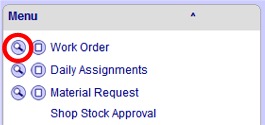
2. Click on the Search button (magnifying glass) to the left of ‘Work Order’ to bring up the search fields.
3. The criteria for this query is: Active Preventive Maintenance Work Orders for the Auto shop.
Find the Status field and enter ACTIVE.

4. Find the Type field in the list and enter P. Right under that, for Category, enter PM.

5. Scroll down the page until you find Phase. Click the ‘Show’ hyperlink on the right to show the search fields for the Phase.

6. Find the Shop field and enter AUTO.

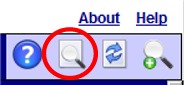
7. The criteria is complete. Click on the Search button on the upper right hand corner of the page to run the query.
8. The query resulted in 115 Work Orders returned (as of 10 Jun 2010). The next step is to save the query. Saving a query saves you time in looking for your information. With a query saved, you would not have to enter criteria each time you need to search for your information.
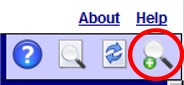
Going back to the upper right-hand menu buttons, click on the 'Add Query' button.
9. The 'Personal Query' page will appear. Here you will give your query a name. For this exercise, the name of the query will be "ACTIVE PM WOS AUTO SHOP".
In the WorkDesk area of the page, select the 'Query Count' dropdown menu and choose 'Yes'. What this does is you will be able to run the query from your WorkDesk.
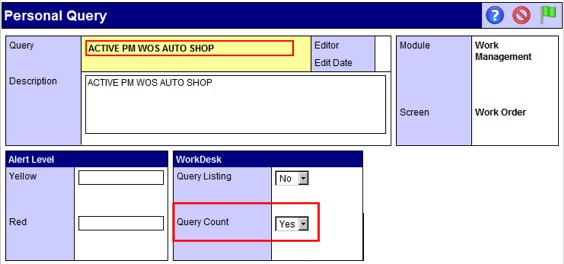
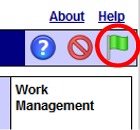
10. Afterwards, click on the 'Done' button (green flag) on upper right-hand corner of the page.
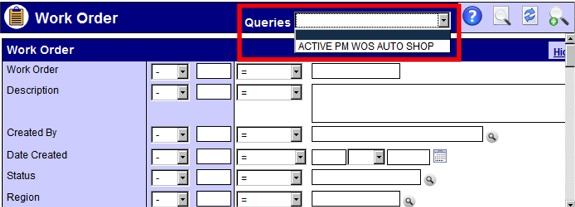
11. You will be taken back to the Search page. You will notice that your query is now listed in the 'Queries' dropdown list. Click on the 'Save' button to save the query.

Now that you have saved the query, you can run the query whenever you are in Work Management. Follow Step 2, go to the 'Queries' dropdown and select the query. AiM will then run the query and retrieve the data.
Set up the Query on your WorkDesk -
You can have the query appear on your WorkDesk so you do not have to go to the AiM module itself (in this case, Work Management) to run it. This saves you time and it gives you a quick preview of your data right after you log on to AiM.
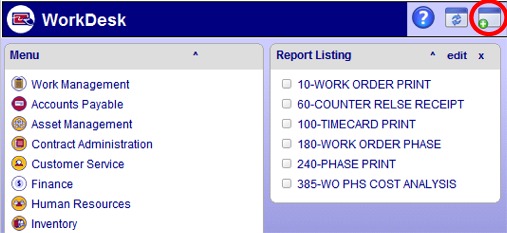
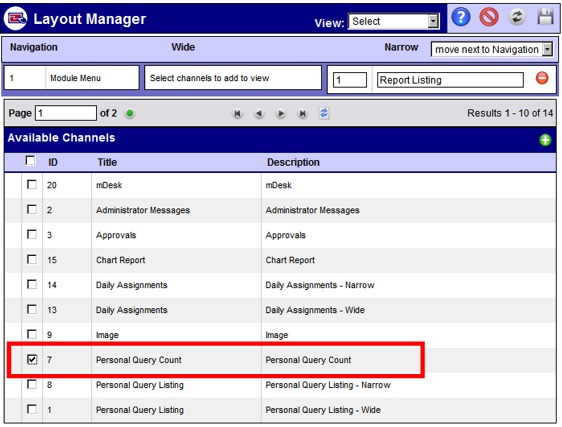
2. The WorkDesk Layout Manager page will appear. This page is where you can customize your WorkDesk to suit your needs. You can select which "channels" you want to appear on your WorkDesk. For this exercise, we want to make the query we built to appear on the WorkDesk.
Browse the list and find the 'Personal Query Count' channel . Put a check in the checkbox.
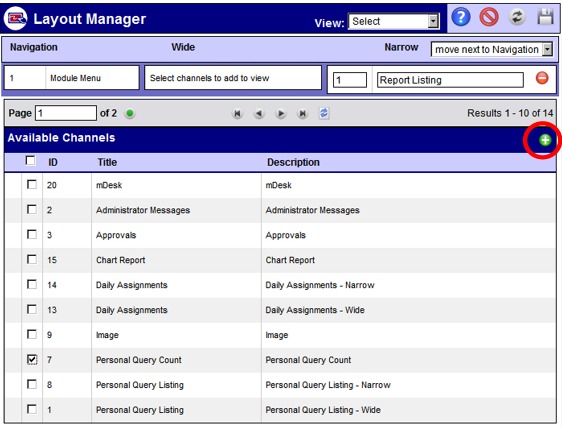
4. You will notice that the 'Personal Query Count' channel is brought up in the Layout area of the WorkDesk. Click on the 'Save' button on the upper right-hand corner. You will be taken back to your WorkDesk.
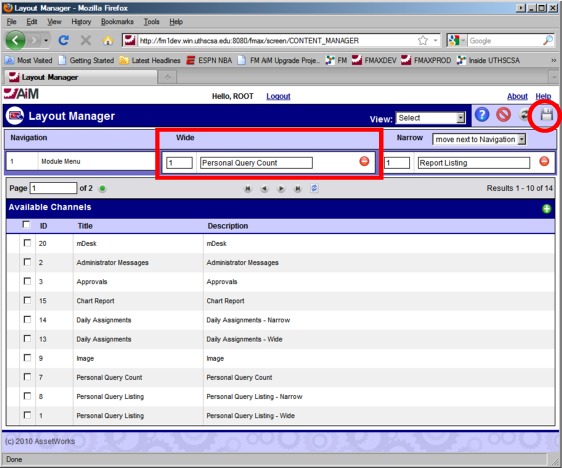
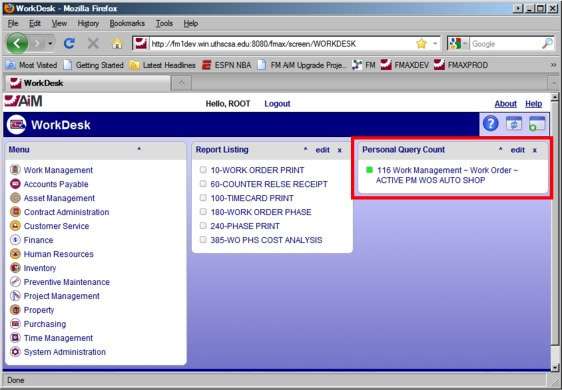
5. The query is now visible on your WorkDesk under the Personal Query Count channel. It shows a current count of the number of records that meet the query's criteria. Simply click on the query to run it to bring up those records.